Followup CRM + Viewpoint Spectrum Integration Walkthrough
See how Followup CRM integrates with Spectrum by Viewpoint to help construction companies streamline their sales pipeline, track bids, and improve project handoff. This powerful integration eliminates manual data entry, keeps sales and accounting teams aligned, and ensures every lead and bid is properly tracked.
What You’ll Learn in This Video:
Spectrum Issue: Search Windows Display Without Lines or Information on Initial Access
Issue:
No information appears when the user opens a search window. This appears to happen at random.
Cause:
A display bug was introduced in Chrome, version 80.
Temporary Resolution:
Option A:
- Change zoom percentage (CTL+, CTL-)
- Close and reopen the Search window
- After displaying list right-click and choose clear settings
Option B:
- Uninstall version 80 of Chrome and reinstall version 79.
Option C:
Enable Chrome PDF Viewer for Spectrum Forms
If you are having an issues printing PDF files from your Chrome browser:
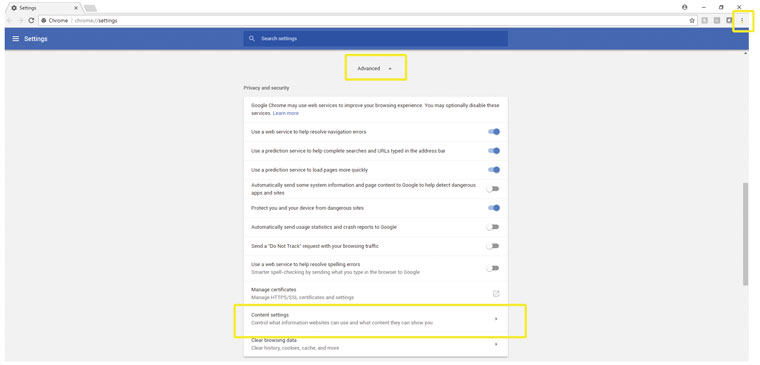
- Click on the three vertical dots (near the top right of your browser, directly to the right of the address bar)
- Click on settings
- Scroll to the bottom of settings, then click on Advanced
- Under the privacy and security section, click on content settings
- Near the bottom of content settings, click on PDF Documents
- Depending on what version of Chrome you are running, you'll either want to disable other PDF viewing software, to allow Chrome's PDF viewer to work automatically, or you'll simply click on the "slide button" to enable PDF's to automatically open when in Chrome.
Wireless Performance Issues with Spectrum
For clients who have recently added or upgraded their wireless nodes, they may experience performance issues with Spectrum Construction Software.
The reason for this is that there is a new TCP/IP version 6 that is installed (along with the older TCP/IP version 4). Spectrum is not yet working with the newer protocol.
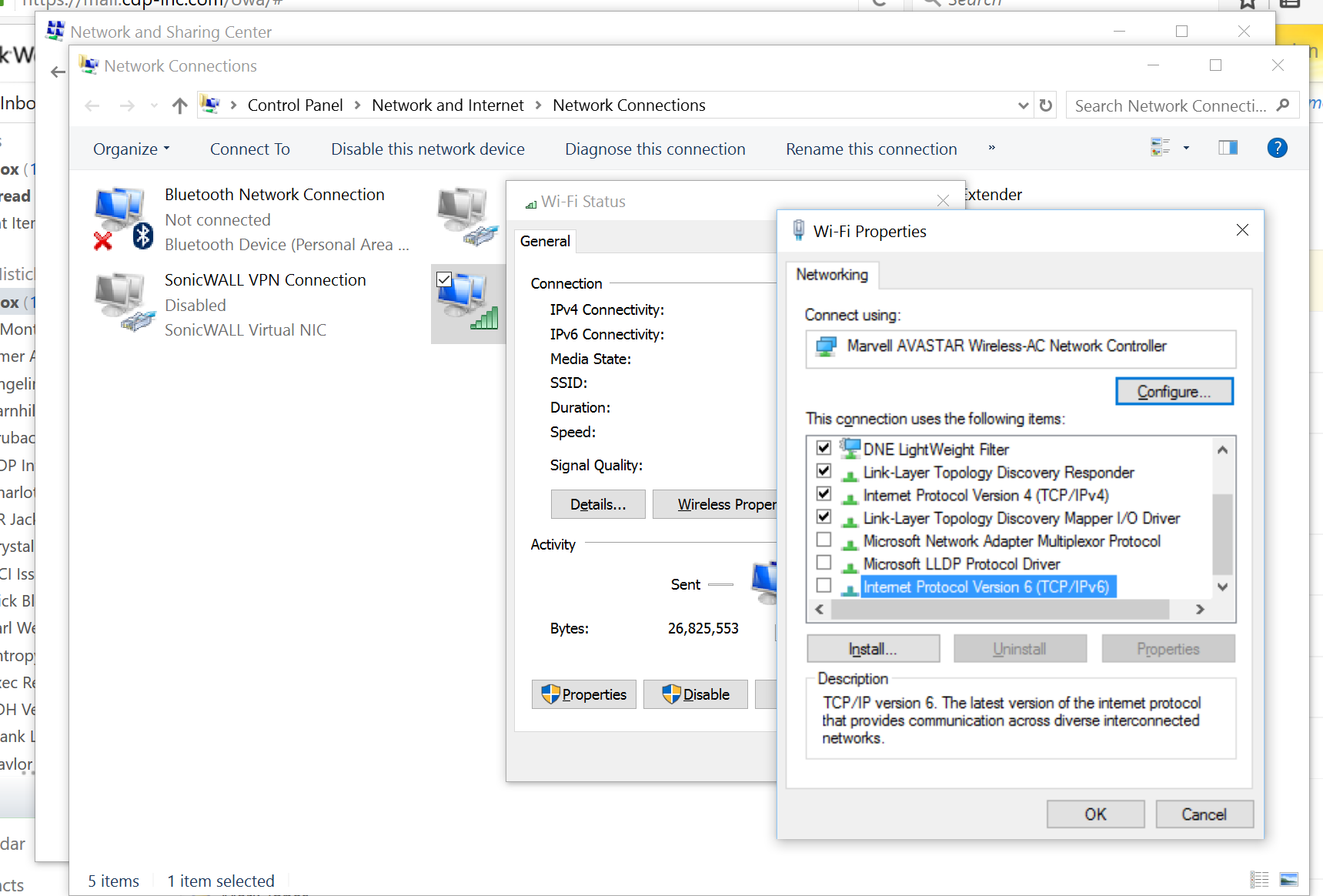
To eliminate the performance issues, go to the Control Panel and go to Network Connections. Select the current wireless connection. Once it is open, click on the “Properties” button located in the lower left corner of the box. Under Networking, scroll down to find the TCP/IPv6 option and uncheck it.
Spectrum Power User Tip: How to Create Separate Payables Checks by Invoice
Have you ever wanted to cut separate checks to the power company or some other utility?
This is one of those questions that comes up often for Spectrum users, and this can be done using Locations.
Vendor Locations is a new concept in Spectrum Construction Software version 14. Here you can create 9,999 different addresses for one vendor…and even better, you can assign these addresses directly to the invoice.
Scenario
You need to pay the utility for power at your job sites. You know that they won’t apply the payments correctly if you send in one check, so you decide to send in one check per invoice. Let’s assume you receive a separate invoice for each job site.
Recommended Setup:
Spectrum Construction Software: Getting the Most Out of Tree Grids
Original post by Geoffrey Falk
One of my favorite new features in version 14 is our new “tree grid” functionality. This type of screen allows you to group the information in a variety of ways and then lets you expand a section as needed.
Using the ‘Group by’ Feature
Each tree grid screen has standard groupings built in. Click the drop down arrow on the Grouping Selector to choose a different format. Once selected, the screen will redraw using this methodology.
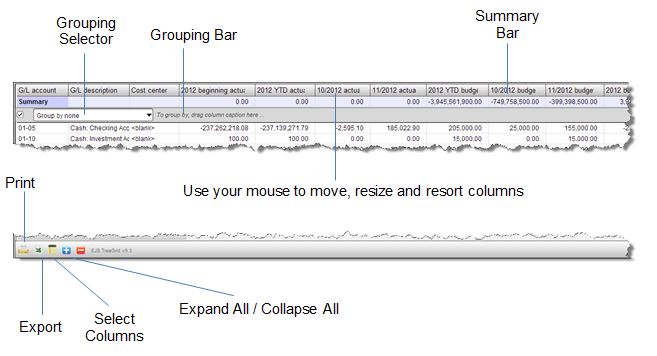
Use the Grouping Selector to redisplay the information using this ‘Group by’ format.
The Grouping Bar can be used to create additional formats. To create a new one, drag the column title onto the Grouping Bar. To create a subset of the first group, drag another column title after the first one.
For example, on the G/L Detail Analysis Inquiry, drag the ‘Year’ column title onto the Grouping Bar. Then drag the ‘G/L period’. Now you have financial information sorted first by year and then by fiscal period.
Customize Personal Menu in Spectrum Construction Management Software
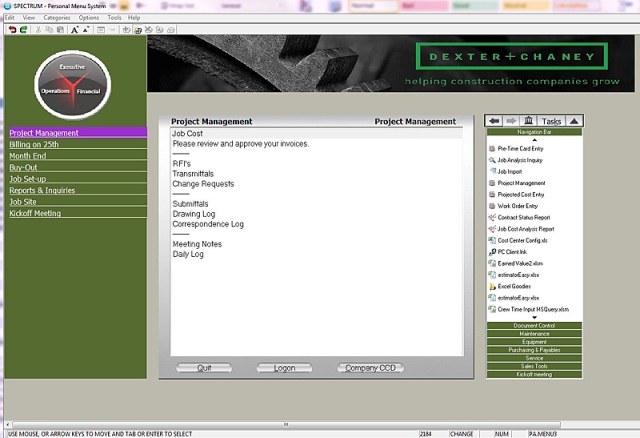
You can personalize menus in Spectrum to work the way you do with the Personal Menu function. The Personal Menu is a user-defined, customized menu configured for particular operators or schemes. Once its created, you can assign the menu to specific operators or a security level.
Perhaps you're tired of navigating to multiple modules to complete the work for a specific task (such as posting Accounts Payable invoices after receiving against a purchase order). By creating a Personal Menu, you can streamline data entry processes, provide more meaningful menu descriptions for data entry screens, and simplify system security by limiting access to the screens in the menus. Your System Administrator can create Personal Menus by going to Admin | Security | Personal Menu.